
A VPN is often recommended with IPTV, but the honest answer is more nuanced: you do not always need one, but it can be useful for privacy and for certain buffering or throttling problems. If your streams work perfectly without a VPN, there is no reason to add one just because someone told you to.gizmodo+1 This guide explains when a VPN helps, when it does not, and how to choose one that will not make your IPTV experience worse. Why people use a VPN with IPTV A VPN encrypts your connection and routes it through a server in another location. That means your internet provider generally sees the VPN connection rather than the specific streaming destination inside it. It can also hide your real IP address from websites and services you visit.pcmag+1 For IPTV users, the main reasons are: When you do not need a VPN If your IPTV service already works smoothly on your home network, adding a VPN may not improve anything. A VPN adds an extra hop, which can increase latency and reduce speed, especially if you connect to a distant server.pcmag You probably do not need a VPN if: In those cases, fixing Ethernet, Wi‑Fi, cache or device performance is more effective than adding a VPN. When a VPN can help A VPN is most useful when the problem follows a clear pattern: If that sounds familiar, test the same channel with and without a VPN. If performance improves consistently, you may have found the cause. What makes a good IPTV VPN? Do not choose a VPN based on marketing alone. For IPTV, speed and stability matter as much as privacy. Look for: Popular choices include NordVPN, Proton VPN, ExpressVPN, Private Internet Access and Surfshark. Each has different strengths, so test the one you choose on your own connection before committing to a long plan.gizmodo+1 How to test a VPN properly Do not change several settings at once. Follow this simple process: If the VPN improves playback, try one or two other nearby servers to confirm the improvement. If it makes things worse, disconnect it and investigate your home network or provider instead.reddit Important limitations A VPN cannot fix every IPTV problem. It will not repair an overloaded server, a weak Wi‑Fi signal, an old streaming device or a poor-quality source feed. It also does not make you anonymous to your VPN provider or to any account you sign into.pcmag+1 Some streaming services also block known VPN IP ranges. If that happens, try another server or contact the provider’s support team.pcmag+1 Final verdict Do you really need a VPN for IPTV in 2026? Not always. Use one if privacy matters to you, if you suspect ISP throttling, or if testing shows that it improves your connection. Otherwise, focus on Ethernet, Wi‑Fi quality, cache clearing and a properly managed IPTV provider.gizmodo+2 A VPN is a useful tool, but it is not a magic fix. Test it properly, choose a nearby server, and let real playback—not marketing claims—decide whether it belongs in your setup.
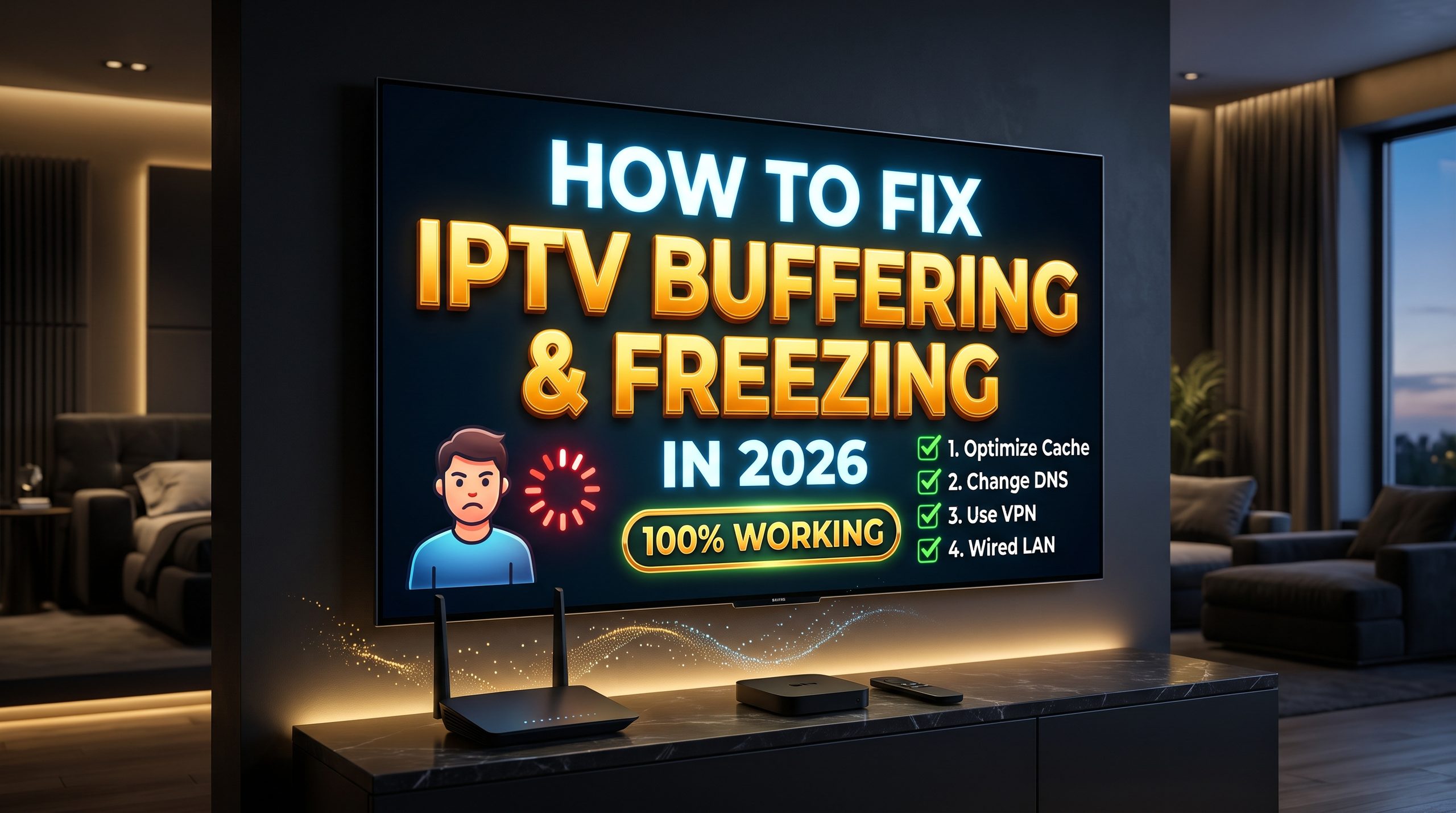
How to Fix IPTV Buffering and Freezing in 2026 (100% Working)
Buffering is frustrating, especially when it happens during a live match or an important scene. In most cases, it is caused by weak Wi‑Fi, an overloaded streaming device, ISP traffic management or an overloaded IPTV server. The good news is that you can usually identify the cause with a few quick tests. Follow these steps in order. Do not change everything at once, or you will not know which fix worked. 1. Restart your network Unplug your router, modem and streaming device from the wall for about 60 seconds. Plug them back in, wait for the connection to return, then reopen your IPTV player. This clears temporary connection problems and frees up device memory. It is the simplest fix and often solves sudden freezing. 2. Use Ethernet instead of Wi‑Fi A wired connection is usually more stable than Wi‑Fi, especially for 4K streaming. Connect your Firestick, Android box or Smart TV directly to the router with an Ethernet cable if possible. If Ethernet is not possible: 3. Clear the app cache IPTV apps store temporary files, logos and guide data. Over time, this cache can slow the player down or cause repeated buffering. On Fire TV: Avoid Clear Data unless you are happy to re-enter your playlist details. After clearing the cache, restart the app and test again. 4. Check your internet speed A 4K stream needs a stable connection, not just a fast speed test. Many guides suggest at least 25 Mbps for 4K, with more headroom if other people are using the internet at the same time. Run the speed test on the device that is buffering. If the speed is fine but only IPTV freezes, the issue may be the streaming provider rather than your broadband. 5. Test a VPN for ISP throttling If buffering happens mainly during peak hours or live sports events, your internet provider may be slowing certain types of traffic. A VPN can help by encrypting your traffic, making it harder for the ISP to identify and throttle it. Test it like this: If it improves, you may have found the cause. If it does not, do not keep switching VPN servers endlessly—the problem may be elsewhere. 6. Adjust the player buffer Some players, including TiviMate, allow you to increase the playback buffer. A larger buffer can help the app keep playing during brief network drops. In TiviMate, go to Settings > Playback > Buffer size and try Large or Very Large. Test the same channel after changing it. 7. Identify the real cause Use this simple pattern test: What happens Likely cause What happens Likely cause Every channel buffers on every device Home network or ISP Only IPTV buffers, while other streaming works IPTV provider or route Buffering happens mainly in the evening Peak-hour congestion or overloaded server Only one channel freezes That source feed or channel Problem started after an app update App cache, version or decoder issue If you have tried Ethernet, cleared the cache, confirmed your speed and tested a VPN, but every channel still freezes at peak times, the provider’s server is the most likely cause. Final advice Do not blame the provider immediately, and do not assume your Wi‑Fi is always at fault. Test one change at a time, starting with the network, then the device, then the player and finally the server. If you follow these steps, you will usually find the cause of IPTV buffering and freezing—and get back to smooth, high-quality streaming.